
| Introduction | Create a New Stack | Working with Color & Drawing | Saving a Stack | Adding New Cards & Navigation | Creating a Border |
In the last lesson you learned what a HyperStudio stack is and how to
navigate around an existing stack. In this lesson you will create a simple
stack that has the following features: color, clip art, drawing, navigation
buttons, and a border.
Creating a new stack is very simple. Launch the HyperStudio
program.
Double click on the HyperStudio program icon to do this:
When the program has loaded, a default stack will appear. Click the New Stack button (varies according to the version of HyperStudio you are using) and then click "Yes" or "OK" to any messages which appear.
| HyperStudio 3.1 | HyperStudio 4 | ||
 |
 |
 |
|
You are now faced with an empty page. What are you going to do with it? Let's start by doing some drawing. In order to draw you need drawing tools. Click and hold your mouse button on the "Tools" menu. This is a "tear off" menu and can be moved onto the desktop by simply holding the mouse button down and moving the mouse. Move the menu onto your desktop so it is not obscuring the new card.
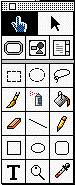
The "Tools" Menu
Now try out some of the tools. Try the pencil; it is for freehand drawing. Try the paintbrush; it is also for freehand drawing but you can change the shape of the brush by double clicking on the brush in the toolbar. If you want to erase anything you have drawn, choose one of the following options;


(Marquee,
Circle Marquee, Lasso)
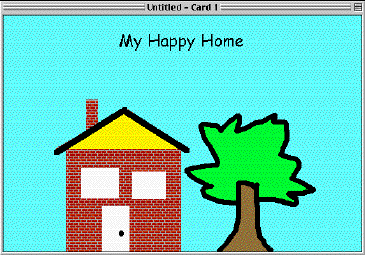
Now that you've got a feel for the drawing tools, we're going to draw a picture for the first card of the stack you will be creating. Use "Select All" and delete to clear the card of any drawing. Using the Text tool, write "My Happy Home" across the top of the screen, roughly in the center of the screen. Using the draw tools, draw a house and a tree in the bottom area of the screen. You can change the font size and style by double clicking on the text tool in tool menu. You can change the thickness of lines for the line tool or the shapes by double clicking on the line tool in tool menu.
This house and tree are very nice, but a simple black and white drawing is not that interesting, so let's add some color. Click on the color menu and choose a nice green for your tree leaves. Using the paint can tool, color in your tree. Remember that if your treetop is not enclosed, you will paint the whole screen. If your treetop is not enclosed, try the spray paint instead. You'll notice that the color menu is "Tear off" as well. Tear off the color menu and leave it on your desktop. Choose a nice brown for the tree trunk. Color the rest of the picture according to your taste. You can even try coloring the background; you will have to fill in the center of closed letters if you do this.
When it's finished, your first card may (or may not :-)) look something like this:
You will want to save your masterpiece. Choose "Save Stack" from
the file menu. Saving in HyperStudio is just the same as it is in every
other program. Name your stack "House Stack" and choose a file location
to save to. You can save to the computer desktop, a floppy, or a Zip
disk.
A one card stack is rarely adequate, so we are now going to add another card. Choose "New Card" from the "Edit" menu. You are presented with a new, blank card. What if you want to move from one card to another? Choose "Back" from the "Move" menu. You are now back at the first card.
This is a cumbersome way to navigate through your cards though. We are going to add some navigation buttons right on the cards. Choose "Add a Button" from the "Object" menu. The button dialog will come up. Type "Next" in the name field. Under Color, choose a color for the name and for the button background. Under Type, choose one of the top 4 button shapes. The button dialogue looks like this;
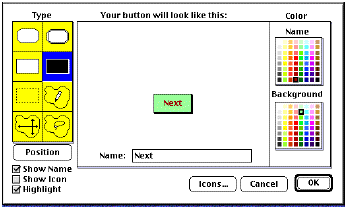
I chose the square shadow button type, light green background and red text. Click "OK." Some instructions will appear. Click "OK" again. Your button appears on the screen, surrounded by a flashing marquee. Place your cursor inside the button and drag it to the bottom right hand corner. Click outside or the button. The button action dialogue appears. Click the "Next Card" action. The "Transition" dialogue appears. Choose "Fastest" from the transition menu and click "OK."
Choose the "Browser" tool from the "Tools" menu. The browser tool is the one that looks like a little hand with an extended index finger.

The browser tool
Try your button! It will move you to the next card.
You will find yourself looking at a blank card with no buttons. Add
two buttons to the card; one for going to the previous card and one for
going to the next card. There in no next card as of yet, but that will
change as we work on. Try out your buttons.
For card 2, we are going to add a border and clip art. First the border. Go
to card 2. Choose "Add Clip Art" from the file menu. When the open dialogue
appears, scroll through the various clip art files supplied by HyperStudio until
you find one with a suitable border around the edge and select it .
Choose open. The file will appear. Double click on the marquee tool
( )
to select all of the picture. Click "OK." Your screen in now filled with
stuff.. We only want the border however. Select the marquee tool from the
"Tools" menu and select everything inside of the border, but leave the border
itself.Press the "Delete" key on your keyboard. Your screen will look like
this:
)
to select all of the picture. Click "OK." Your screen in now filled with
stuff.. We only want the border however. Select the marquee tool from the
"Tools" menu and select everything inside of the border, but leave the border
itself.Press the "Delete" key on your keyboard. Your screen will look like
this:
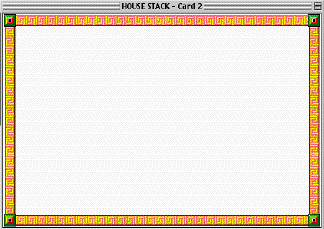
Congratulations! You have just added a clip art border! Now we are going to
select something specific from a clip art file. Choose "Add Clip Art" from
the file menu. When the open dialogue appears, locate the file "Science" and
select it. (If your version of HyperStudio does not have the "Science" clip
art file, use anohter file that you have saved on your disk). Choose open.
You will see several different objects that are related to science. Click
on the lasso tool ( )
and carefully drag around the microscope. When you have encircled the microscope,
release your mouse button. The microscope will be shimmering. Click "OK."
The microscope appears in the center of your border. Move your mouse cursor
over the microscope. Notice that it changes shape to a cross with arrow
on it. When it is this shape, you can drag your clip art to other parts of the
card. Move the microscope to the left hand side of the card, but not on top
of the border. Click your mouse on a blank part of the screen to set the position
of the clip art object. You now know the basics of how to add clip art.
Now you will scan through the clip art and add some more. Add two or more
pieces of clip art to card two. You can look through all of the available clip
art to make your choices.
)
and carefully drag around the microscope. When you have encircled the microscope,
release your mouse button. The microscope will be shimmering. Click "OK."
The microscope appears in the center of your border. Move your mouse cursor
over the microscope. Notice that it changes shape to a cross with arrow
on it. When it is this shape, you can drag your clip art to other parts of the
card. Move the microscope to the left hand side of the card, but not on top
of the border. Click your mouse on a blank part of the screen to set the position
of the clip art object. You now know the basics of how to add clip art.
Now you will scan through the clip art and add some more. Add two or more
pieces of clip art to card two. You can look through all of the available clip
art to make your choices.
2.15.02 - LRW