| Adding a Gradient Background | Adding a Text Object | More Buttons | Working with Sound |
ADDING A GRADIENT BACKGROUND TO CARD 3
If it is not already open, open your "HOUSE STACK." Choose "Last Card" from the "Move" Menu. Choose "New Card" from the "Edit" menu. You will now be looking at a blank card named "Card 3." You are now ready to add the gradient background.
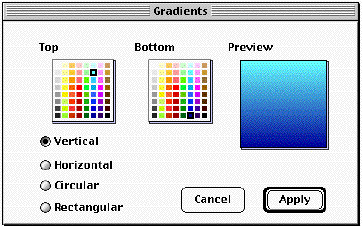
We want to add a background that uses "gradients;" that is, the color gradually changes from one area of the screen to another. This is a particularly attractive type of background. From the "Edit" menu, select "Effects" and when the expanding menu pops up, select "Gradients. You will see this screen;
This is the gradients screen. Set up your gradient screen the same way this one has been set up; "Vertical" is checked, the top color is light blue (2 down and 3 from the right) and the bottom color is dark blue (bottom row, 3rd from the right). Click apply. You will now have a nice light to dark blue gradient as your background.
Let's say that you decide that you don't like that particular background.
It's easy to change. From the "Edit" menu, select "Erase Background."
When the color picker appears, choose either white or a different color
for your background. Repeat the process for using a gradient with color
that you like. Try different colors and patterns for your gradient.
You learned how to add text in tutorial 2. The text you added in tutorial 2 is treated like a graphic; you can erase or edit it with the draw tools. You cannot reedit this text like a word processor though; it is essentially a picture. This time however, we are going to create a text box to contain your text. This is fundamentally different as the text will be treated as text and you can return to edit it later as text.
Choose "Add a text object" from the "Objects" menu. Click "OK." You will now see a shimmering square, just like the marquee, in the middle of your card. Move your cursor to the inside of the square. You will notice that it becomes a cross with arrows. You can move the text box when the cursor is this shape. Move the text box to the left hand side of the card. Click outside of the box to fix the new position. The Text Appearance dialogue appears. Type "MyTextBox" in the name field. Choose a text and background color that you like. You will notice that you can preview the colors in the right hand window. Click the "Style" button. This opens up the text style dialogue. Choose a text style, font and font size that you like. Click "OK."
The next few steps will add an automatic scrolling feature to the text box. Click the "Actions" button. This opens the text box actions dialogue. Choose "New Button Actions" from the "Things to do" menu on the right. This brings up the new button actions dialogue. Choose "Roll Credits" and click "Use this NBA." A new window with options for the Roll Credits NBA will appear. In the "Name" field type the same name you used above. i.e. "MyTextBox". Click "OK." Click "OK" again. Click "Automatic timer." this brings up the timer dialogue. Choose the top button and click "OK", then "Done", then "OK" again. Your card should look something like this depending on the font and colors you chose:
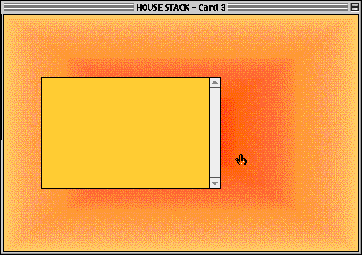
You can enter text into this box now. Click on the text box. You will notice the flashing text cursor at the top of the box. Type several lines of text into the text box so that it scrolls down beyond the size of the box. For example:
"Our House"
1982, Smyth and Foreman
Performed by Madness
Father wears his Sunday Best
Mother's tired she needs a rest
The kids are playing up downstairs
Sister's sighing in her sleep
Brother's got a date to keep
He can't hang around
Our house, in the middle of our street...
When you've finished entering the text, scroll back to the top of the text box. Now you will need to protect the text box from editing by people who view your stack. Select the standard pointing tool (the one that looks like an arrow) from the "Tools" menu and double click on your text box. The text box dialogue comes up again. Click "Read Only" to check it and un-check "Draw Scroll Bar." Then click "OK." Select the browser tool from the "Tools" menu and click on your text box. You should see it automatically scroll thanks to the Roll Credits NBA.
ADD SOME CLIP ART TO THIS CARD
Search through the HyperStudio clip art and find 2 images and add
them to card three. Position your clip art to the right of the text
object.
We need to add some navigation buttons to this card, but we are going to use icons instead of text buttons. Choose "Add a Button" from the object menu. When the button dialogue appears, configure it to these settings (do it in this order):
Name: Back
Type: Invisible
Put a Check Mark next to "Show Icon"
When you check "Show Icon," a dialogue appears with several button icons. Choose the back arrow with the drop shadow (see figure). Click OK.
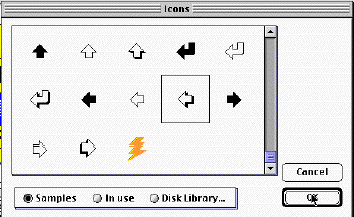
Click OK again. Position your button in the bottom left hand corner of the card. Click outside of the button to position it. Choose "Back" from the "Places to go" choices. Choose a transition that you like. You can experiment with the transitions by clicking the "Try it" button. Click OK. Do not click "Done" yet. We are going to add a sound to this button as well. Choose "Play a sound" from the "Things to do" choices.
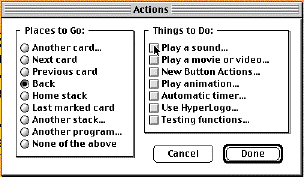
You will now see the tape deck. Here you can play and record sounds. Right now we're just going to choose an existing sound. Choose a sound (we chose "Click" in the example below) from the menu of sounds.
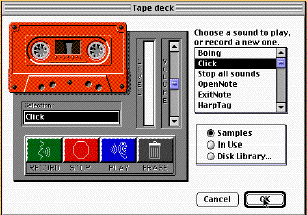
Press play on the tape deck. You will hear a preview of your
chosen sound. Click "OK." Click "Done." Choose the browser tool and
try out your sound button.
WORKING WITH SOUND
Note: In order to complete this part of the tutorial, your computer must be equipped with a microphone.
Make sure you are on the last card. Choose "last" from the "Move" menu. Choose "Add a Button" from the "Objects" menu. Set the button options Name: "Next", Type: Invisible, Check "Show Icon". When you check "Show Icon," a dialogue appears with several button icons. Choose the next arrow with the drop shadow. Click OK. Click OK again. Position your button in the bottom right hand corner of the card. Click outside of the button to position it. Choose "Next" from the "Places to go" choices. Choose a transition that you like. Click OK. Click "Play a sound" from the "Things to do" choices. The tape deck appears. To make a recording you first press the record button, say what you want to, and then press stop. Press "Record." Say the word "Next", press "Stop", then press "Play". You can now hear the sound you recorded. If you're not satisfied with it, repeat the procedure. When you have a sound that you are satisfied with, type "next" in the sound name field and press "OK." Click "Done." Choose the browser tool from the tools menu and try out your button.
USING SOUNDS FROM THE DISK LIBRARY.
You can use sounds other than the ones that are loaded into the program. Choose the selection cursor (the one that looks like an arrow) from the tools menu. Double click on your button. The button dialogue will appear. Click "Actions." This takes you to the familiar actions dialogue. Click "Play a sound." This brings up the tape deck. Click the "Disk Library" radio button. This brings up a file open box for the HyperStudio sounds directory (in HyperStudio 4 you will be presented with the Media Library directory - you must then scroll down and open the Sounds directory). It looks like this:
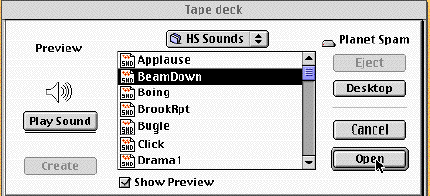
Single click on the sound of your choice ("Beam Down" is selected in the example). Press "Play sound." This allows you to preview a sound. Try some of the other sounds in the library. HyperStudio comes with a wide variety of sounds for you to use. Decide on which sound you want to use for , make sure its name is highlighted, and click "Open." Click "OK." Click "Done." Choose the browser tool from the "Tools" menu. Choose "Save" from the "File" menu.
2.15.02 - LRW